#IdFriday | LDAP Signing Changes in Windows Server 2025 - Part 2

Updated: Jan 6

Identity Risks in Focus: Preparing for LDAP Signing in Windows Server 2025
In Part 1, we explored why LDAP signing matters and what’s changing in Windows Server 2025.
Now, let’s look at the practical side, how to identify unsigned binds, enable NTDS logging, and interpret LDAP event IDs so you can spot risks early and fix them before you press the button.
What's Impactful? Which bits are going to break the apps?
Windows Server 2025 enforces LDAP signing by default in the policy below. Ensure you're ready and have performed the necessary checks before the upgrade.
So let's look in more detail at the settings:
The new policy setting:
Domain controller: LDAP server signing requirements Enforcement
(default setting = none)
This setting will be visible on Windows Server 2025 Active Directory servers in the
Default Domain Controllers Group Policy and will be applied at this platform level by default.
The default setting is enabled, and LDAP signing is enforced. This will cause your current LDAP apps to fail where signing is not configured.
If the setting is disabled (i.e. manually disabled, it is not recommended), the existing legacy
Domain controller: LDAP server signing requirements policy will be applied instead.


Impact on Existing Policy Settings
To view the setting, review the Default Domain Controllers Group Policy on Windows Server 2025.
All existing AD servers prior to Windows Server 2025 will not be affected and will continue to apply the legacy policy:
Domain controller: LDAP server signing requirements. Behind the scenes, it's making the change to the following registry key:
RegistryPath: HKEY_LOCAL_MACHINE\SYSTEM\CurrentControlSet\Services\NTDS\ParametersRegistry Setting: LDAPServerIntegrity
DataType: DWORDExpected settings will be either:
Group Policy Setting | Registry Setting |
None | 1 |
Require Signing | 2 |
If the existing policy above was enabled and set to require signing, you're likely to be in a good position and will not experience any disruption with the new Enforcement policy. If this feature hasn't been enabled, read on; it's time to prepare.
The second policy change | LDAP hardening using channel token binding
Domain controller: LDAP server channel binding token requirements (default setting | none)default setting = when supportedBehind the scenes, it's making the change to the following registry key:
RegistryPath: HKEY_LOCAL_MACHINE\SYSTEM\CurrentControlSet\Services\NTDS\Parameters Registry Setting: LdapEnforceChannelBinding
DataType: DWORDExpected settings are :
Group Policy Setting | Registry Setting |
Never | 0 |
When Supported | 1 |
Always | 2 |
This means channel token binding (binding, signing & sealing) is enabled for all clients which support it, and auditing is enabled by default. You will start to see Event ID 3039 entries in the Directory Service log.
LDAP Channel Binding features were first introduced in the Microsoft security update released on March 10, 2020, and subsequent updates that followed. Although the features were not enabled, functionality was included to allow for auditing (logging), which identifies when the Channel Binding Token is being used.
For a complete list of updates, see Windows KB4520412
CBT Safe Option
Selecting the "When Supported" option is the most backwardly compatible for most environments, unless you're purely Microsoft with no other platforms, appliances or devices, etc. that may be affected. Auditing is your friend here for further investigation.
What do we need to check before we start?
Now that you're aware of the risks and understand the new changes, what steps do we need to take before we hit 'GO'?
NTDS logging helps identify these unsigned LDAP events. Enable it across all Active Directory servers to capture everything before upgrading to Windows Server 2025.
To enable NTDS logging
HKLM\CurrentControlSet\Services\NTDS\Diagnostics Value:
16 LDAP Interface Events | 2Or, by using the following command on each server
Reg Add HKLM\SYSTEM\CurrentControlSet\Services\NTDS\Diagnostics /v "16 LDAP Interface Events" /t REG_DWORD /d 2 
Understanding NTDS Logging Levels
If you've never enabled NTDS logging before, there are six logging levels, including '0'
Level | Purpose | Detail |
0 | None | Critical events and errors |
1 | Minimal | High-level events and warnings |
2 | Basic | Recommended starting point Prevents wading through too much detail |
3 | Extension | For detailed troubleshooting. Useful when starting to narrow down the root cause |
4 | Verbose | Detailed info once the issue area is known |
5 | Internal | All Service info (rarely needed) Don't start by turning everything up to five, you'll miss the woods for the trees! |
Depending on the size of your environment, you may want to increase the size of the Directory Service Event Log. Example:
In the example below, we configure this to 2GB.
Reg Add "HKEY_LOCAL_MACHINE\SYSTEM\CurrentControlSet\Services\EventLog\Directory Service" /v "MaxSize" /t REG_DWORD /d "2147483648"What Event IDs are we seeking out?
Once auditing/logging is enabled, we need to track down two events for each unsigned/failed LDAP signing and Channel Binding Token request(s).
Event ID | Description | Trigger |
2889 | LDAP Signing The security of these domain controllers can be improved by configuring them to reject simple LDAP bind requests and other bind requests that do not include LDAP signing. | When a client does not use signing for binds on sessions on port 389, Minimum logging level: 2 |
3039 | Channel Binding Token The following client performed an LDAP bind over SSL/TLS and failed the LDAP channel binding token validation. | When a client attempts to bind without a valid CBT. Minimum logging level: 2 |
You’ll also see daily summary events (2886–2888, 3040–3041) indicating unsigned or failed CBT requests.
The table below can be used as a quick reference to determine if the server has received any requests that have been impacted over time.
Event ID | Description | Trigger |
2886 | LDAP Signing The security of this directory server can be significantly enhanced by configuring the server to reject SASL (Negotiate, Kerberos, NTLM, or Digest) LDAP binds that do not request signing (integrity verification) and LDAP simple binds that are performed on a cleartext (non-SSL/TLS-encrypted) connection. | Automatically triggered every 24 hours if non-signed requests are made to the AD server |
2887 | LDAP Signing During the previous 24-hour period, some clients attempted to perform LDAP binds that were either: (1) A SASL (Negotiate, Kerberos, NTLM, or Digest) LDAP bind that did not request signing (integrity validation), or (2) A LDAP simple bind that was performed on a cleartext (non-SSL/TLS-encrypted) connection | Automatically triggered every 24 hours if non-signed requests are made to the AD server |
2888 | LDAP Signing Unsigned network traffic is susceptible to replay attacks, in which an intruder intercepts an authentication attempt and the issue of a ticket. The intruder can reuse the ticket to impersonate the legitimate user. | Automatically triggered every 24 hours if non-signed requests are made to the AD server |
3040 | Channel Binding Token During the previous 24 hour period, # of unprotected LDAPs binds were performed. | Triggered every 24 hours when the CBT Group Policy is set to Never and at least one unprotected bind was completed. Minimum logging level: 0 |
3041 | Channel Binding Token The security of this directory server can be significantly improved by configuring the server to enforce validation of LDAP channel binding tokens. | Triggered every 24 hours, on startup or start of service if the CBT Group Policy is set to Never. Minimum logging level: 0 |
Collecting the Events
The PowerShell Get-WinEvent cmdlet can help you track these down quickly.
As with any script, please test it in your development environment before using it in production.
Get-WinEvent -ComputerName server01.contoso.com -LogName "Directory Service" | Where-Object {$_.ID -eq "2889" -or $_.ID -eq "3039"} | select-object id, Message | export-csv "c:\temp\LDAP-events.csv" -notypeinformationNote: Text denotes your variableThese events will be logged on the AD server(s) servicing the LDAP Bind request, so check all the AD servers.
We've found some events being logged. Where next?
Great - You've now identified AD servers logging Event ID 2889 and 3039.
The information in the event should look similar to the following:
The following client performed a SASL (Negotiate/Kerberos/NTLM/Digest) LDAP bind without requesting signing (integrity verification), or performed a simple bind over a clear text (non-SSL/TLS-encrypted) LDAP connection. Client IP address: <ip-address:port> Identity the client attempted to authenticate as: CONTOSO\UserA Binding Type: 1 |
Directory Services Event ID: 2889 |
Now, examine the binding types in the, as they help identify the type of request being issued -
Binding Type: 0 – SASL Bind that does not use signing Binding Type: 1 – Simple Bind that does not support signingClient IP address: <ip-address:port> Identity the client attempted to authenticate as: CONTOSO\UserA Client supports channel binding:FALSE Client permitted in when supported mode:TRUE Audit result flags:0x42 |
Directory Services Event ID: 2889 |
As above, event Event ID 3029 is logged for a client which doesn't support CBT.
In this event, identify the client, platform, device or application to establish with the vendor if they support CBT binding. Although support is currently limited outside of Microsoft, it's always worth checking with the vendor, as updates (or future planned updates) may be available to support the feature.
Manually Generating Events to Test - Proof of the Pudding
At this point, you will have now identified a list of LDAP consumers, clients, and applications that log either Event ID 2889, Event ID 3029, or both.
It's good policy to test the results and understand how to generate these events to prove the policy is operational.
To do this, there are a couple of tools we can use: either LDP.exe, which is installed as part of the AD Remote Server Tools or the free Softterra LDAP Browser (no endorsement, just my personal preference, as it provides clear error and warning messages)
In this scenario, the LDAP policies are configured as follows:
Domain controller: LDAP server signing requirements Enforcement
default setting = none
Domain controller: LDAP server signing requirements
default setting = noneDC02 = Windows Server 2022 DC05 = Windows Server 2025The Softterra LDAP Browser tool here has been installed on a Windows Server 2019 domain client.
Launch Softterra LDAP Browser

Step 1.
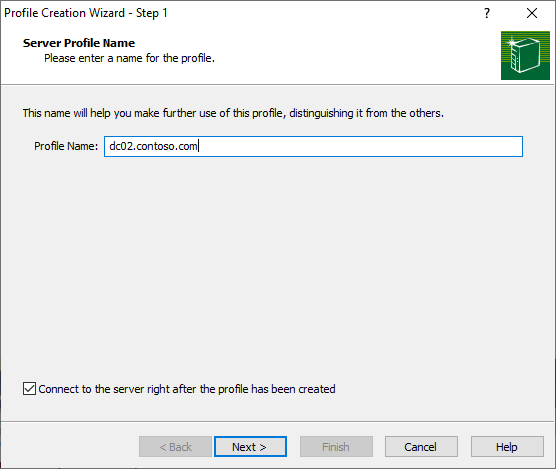
Step 2.

Step 3.

Step 4.

Step 5.

Step 6.

Step 7.

Step 8.
Now do the same for our newly promoted Windows Server 2025 AD server.

Step 9.

Step 10.

Step 11.

Step 12.

The properties of the error message when the connection is rejected. This proves the policy is working.

Step 13. Here, we are looking for the failed event IDs that shouldn't be logged on the Windows Server 2025. Ultimately, they will have been rejected!

So what do we know?
The LDAP server signing requirements Enforcement policy is new to Windows Server 2025 and will only impact LDAP clients connecting to Windows Server 2025 servers (by default)
The new policy will override the existing LDAP signing policy for Windows Server 2025 AD servers.
The default policy setting value of 'not configured' is equivalent to 'enabled'.
LDAP signing is widely supported across multiple platforms
CBT is enabled in Windows Server 2025: When supported, which is the safest configuration for backward compatibility and will generate an audit event for any non-CBT clients
CBT configured to: Always enforce all clients to support CBT and reject all authentication requests from clients which don't. Only configure this once auditing has confirmed no non-CBT requests are being accepted.
CBT is widely supported by Windows clients, but rarely across other platforms
Windows Server 2022 and earlier will continue to use the existing LDAP server signing requirements policy and are not affected (as per testing in my DEV environment)
Enable NTDS Logging\LDAP Interface Events to generate unsigned Events.
Windows Server 2025 did not generate Event ID 2889 and/or Event ID 3039 when attempting an unsigned connection, even when NTDS Logging\LDAP Interface Events logging was enabled.
Wrapping up the LDAP Signing Series
That’s the practical side complete. You now know how to identify unsigned binds, review event logs, and validate your environment before upgrading to Windows Server 2025.
Well done, and thank you for staying with us through this two-part guide! We hope it will help you prepare for your upgrade and highlight some key considerations for planning your migration.
When changes like this touch multiple domain controllers, applications, and legacy integrations, stepping back to review identity risk holistically can help avoid missed dependencies and reduce the risk of unplanned disruption..
This is a good start to securing a hybrid AD environment. There are, of course, additional considerations — including disabling legacy protocols such as SMB v1, and retiring older cyphers like 3DES and RC4.
For now, we’ll leave those for another #IdFriday.
Our advice:
Start early. Enable logging now, gather data, and address issues while you control the timeline — not when production breaks. If you have any questions or need clarification about this post, drop them in the comments below.
The final piece of the puzzle is securing LDAP itself with certificates.
Next time, we’ll look at how to enable and verify LDAP certificates to ensure your directory connections are secure.
Don't forget to subscribe to our blog or follow us on social media to stay up-to-date with the next #IdFriday, LDAP certificate feature and more real-world identity insights.
Need help?
If you’re planning an upgrade, we can help review your LDAP configuration, assess identity risk, and guide you through a smooth, disruption-free transition. We are always open for a conversation to find the best approach for you.
thanks